
We’re excited to announce FigsFlow’s Advanced Pricing Calculator, a powerful tool that eliminates manual calculations and spreadsheet dependency for accountants, bookkeepers, and tax advisers when pricing complex services.
The Advanced Pricing Calculator handles everything from simple volume-based fees to complex graduated rates and tiered pricing structures. You build your pricing logic once, and FigsFlow calculates every quote automatically from that point forward, giving your team consistent pricing and your clients instant quotes.
KEY TAKEAWAYS
- FigsFlow’s Advanced Pricing Calculator eliminates spreadsheet dependency by automating complex service pricing with formula-driven calculations built directly into your workflow
- Six parameter types handle every pricing scenario: Number inputs, Text fields, Options Lists, Tiered Pricing, Volume-Based Rates, and Graduated Rates for tax-bracket-style calculations
- The visual formula builder combines Input Parameters and Calculated Variables with operators and functions to create sophisticated pricing logic that calculates quotes instantly
- Real-time preview shows exactly what clients see when selecting services, with quote totals updating automatically as parameters change for immediate accuracy verification
- FigsFlow AI generates professional service schedules while the Advanced Calculator handles pricing, creating complete services ready for proposals in minutes
What FigsFlow Already Offers
FigsFlow handles the complete client onboarding journey, from initial proposal through AML verification and payment collection. While many practices use our platform successfully for standard services with fixed or simple pricing, we recognized the need for more sophisticated calculations.
Here’s what the platform already provides:
-
Professional Proposals & Engagement Letters
Generate regulatory-compliant proposals and engagement letters in under a minute, meeting ACCA, ICAEW, CIOT, and international professional body standards.
-
Electronic Signatures
Collect client signatures digitally, eliminating printing, scanning, and manual follow-ups.
-
Payment Integration
Connect with Stripe, Adafin, QuickBooks, Xero, and GoCardless for seamless payment processing and automated reconciliation.
-
KYC & AML Verification
Conduct comprehensive compliance checks at the most competitive rates in the market, with automated Companies House integration.
-
Workflow Automation
Integrate with Zapier, Outlook, Gmail, and other tools to automate client communication and practice management tasks.
-
Basic Pricing Calculator
Handle straightforward fixed fees and simple pricing variations for standard compliance and bookkeeping services.
The Problem with Service Pricing
Complex service pricing creates unnecessary friction in your practice. You know the work involved, but calculating fees means opening spreadsheets, checking formulas, and manually transferring numbers to proposals.
This process repeats for every complex quote, wasting time on repetitive calculations instead of fee-earning work. Spreadsheets live on individual computers, formulas get modified without documentation, and team members use different versions, creating pricing inconsistency across your practice.
Transcription errors between spreadsheets and proposals cost you money, while the time spent on manual calculations prevents you from serving clients or developing new business.
Introducing the Advanced Pricing Calculator
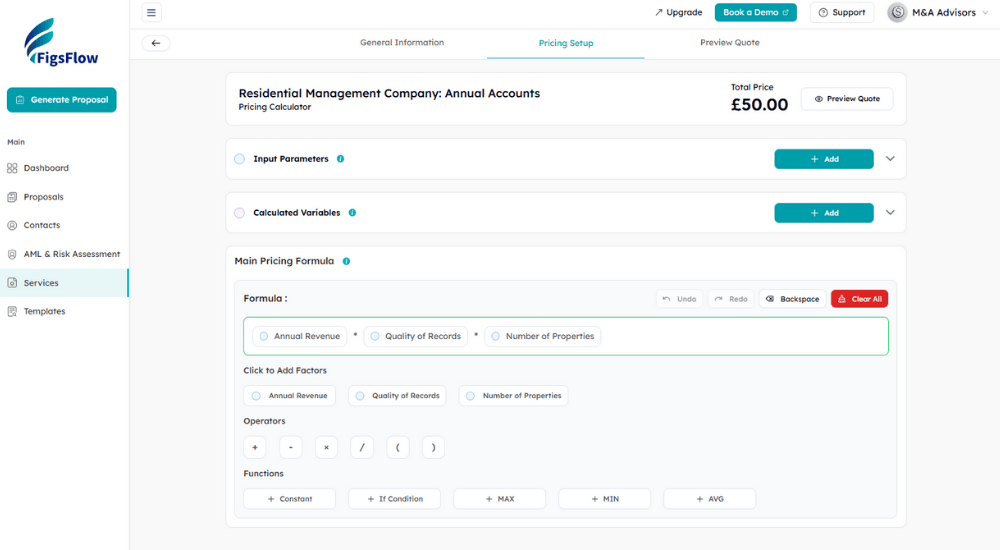
The Advanced Pricing Calculator replaces manual spreadsheet pricing with automated, formula-driven calculations built directly into your FigsFlow workflow. You define your pricing structure once, and every quote calculates automatically based on client-specific parameters.
Here’s what the calculator provides:
-
Multiple Parameter Types
Capture quantities, transaction volumes, property numbers, and client selections with parameters that handle every pricing scenario accounting practices encounter.
-
Calculated Variables
Create intermediate calculations for complex services, keeping sophisticated pricing logic organized and reusable across multiple formulas.
-
Visual Formula Builder
Construct pricing logic using drag-and-drop elements, operators, and functions, with automatic validation ensuring your formulas work correctly.
-
Real-Time Preview
See exactly what clients see when selecting services in proposals, with quote totals updating instantly as parameters change for scenario testing.
IMPORTANT
Once you convert a service to advanced pricing, the change is permanent, ensuring your practice maintains consistent, formula-driven quotes without reverting to manual calculations.
How the Complete FigsFlow Pricing Workflow Works
Let’s walk through creating a complete service using FigsFlow AI and the Advanced Pricing Calculator. For this example, we’ll build an ATED Return service with pricing based on property values and filing volume.
Step 1: Create Your Service with FigsFlow AI
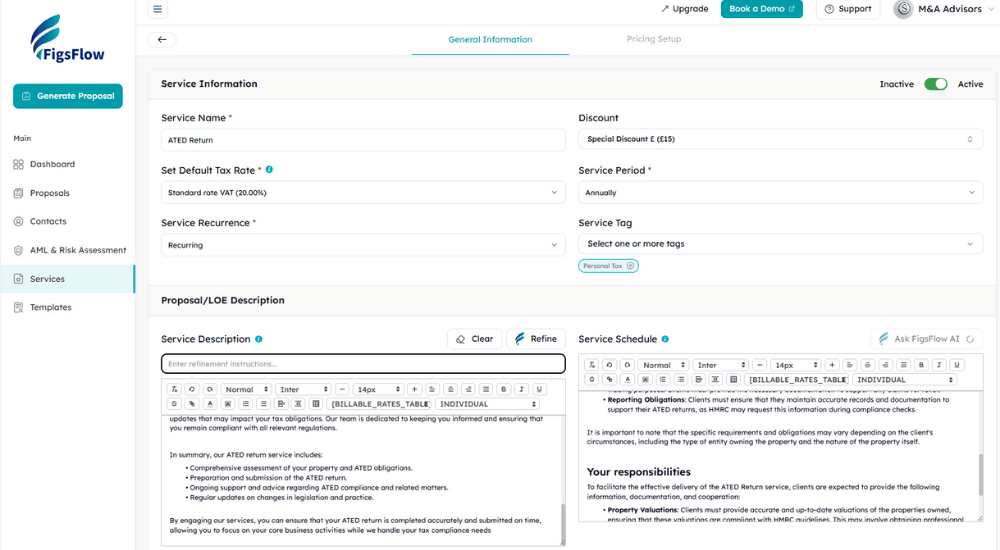
Navigate to Services in your FigsFlow dashboard. Click “Add Service Group” in the top right corner.
Enter your service name in the Service Name field. For this example, type “ATED Return.”
In the Service Description section, you’ll see an “Ask FigsFlow AI” button next to the text editor. Click it. FigsFlow AI generates professional content for two sections: Service Description (which appears in your proposal letters) and Service Schedule (which appears in your engagement letters).
Review the AI-generated content in both fields. You can refine the output by entering additional instructions, adjusting terminology to match your firm’s style, or editing sections directly. The AI provides the professional foundation; you maintain complete control over the final output that clients see.
Step 2: Navigate to Pricing Setup
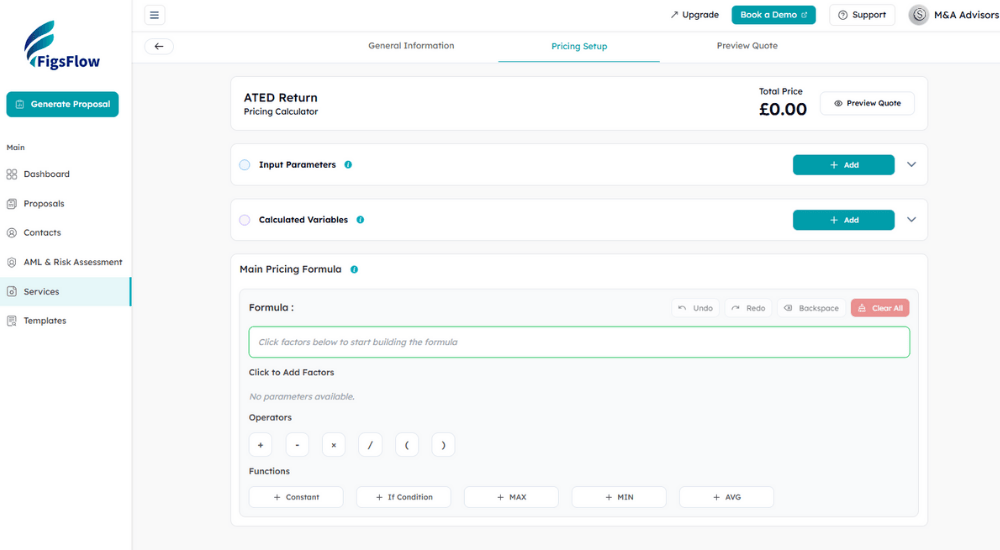
Click the “Pricing Setup” tab at the top of the service configuration screen.
For new services, the Advanced Pricing Calculator interface appears automatically. You’ll see sections for Input Parameters, Calculated Variables, and Main Pricing Formula ready to configure.
If you’re working with an existing service that uses the legacy pricing system, you’ll see a blue button labeled “Convert to Advanced Calculator” in the top right. Click it, and a confirmation module appears with a warning icon explaining that this conversion is permanent and cannot be reversed once confirmed. Click “Confirm Conversion” to proceed, and the interface refreshes to show the Advanced Pricing Calculator builder.
Step 3: Add Your Input Parameters
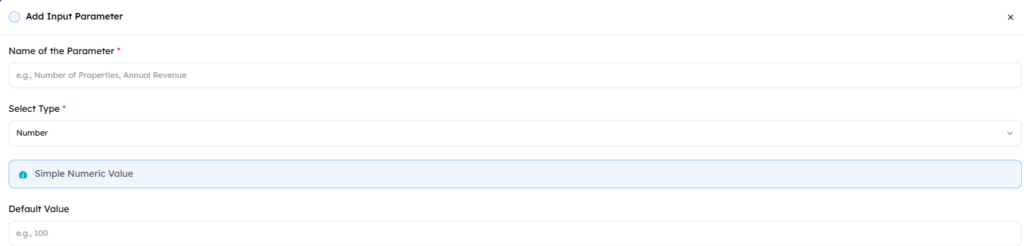
The Input Parameters section appears with an “+ Add” button. Click it to open the parameter configuration module.
You’ll see “Name of the Parameter” and “Select Type” fields. The type dropdown shows six options: Text, Number, Options List, Tiered Pricing, Volume-Based Rate, and Graduated Rate.
For our ATED tax return, let’s add three parameters.
-
Average Value of Properties
This parameter determines the complexity tier of your ATED calculations, as higher-value properties require more detailed reporting and valuation work. We'll name this "Average Value of Properties" and select Tiered Pricing as the type. Configure the value bands as: Up to £1 Million, £1M to £2M, £2M to £5M, £5M to £10M, and Above £10M. Each tier can have an assigned base rate or serve as a factor in your pricing formula.
-
Number of Properties for which ATED Return has to be filed
This parameter captures the volume of properties requiring ATED compliance, directly impacting the scope of work. We'll name this "Number of Properties for which ATED Return has to be filed" and configure it as a Number type with Simple Numeric Value input, creating a standard numeric field for clients to enter their property count.
-
Number of ATED Returns
This parameter accounts for the total number of returns to be submitted, as multiple returns may be needed for restructuring or ownership changes during the year. We'll name this "Number of ATED Returns" and set it up as a Number type with Simple Numeric Value, allowing clients to specify exactly how many separate returns require filing.
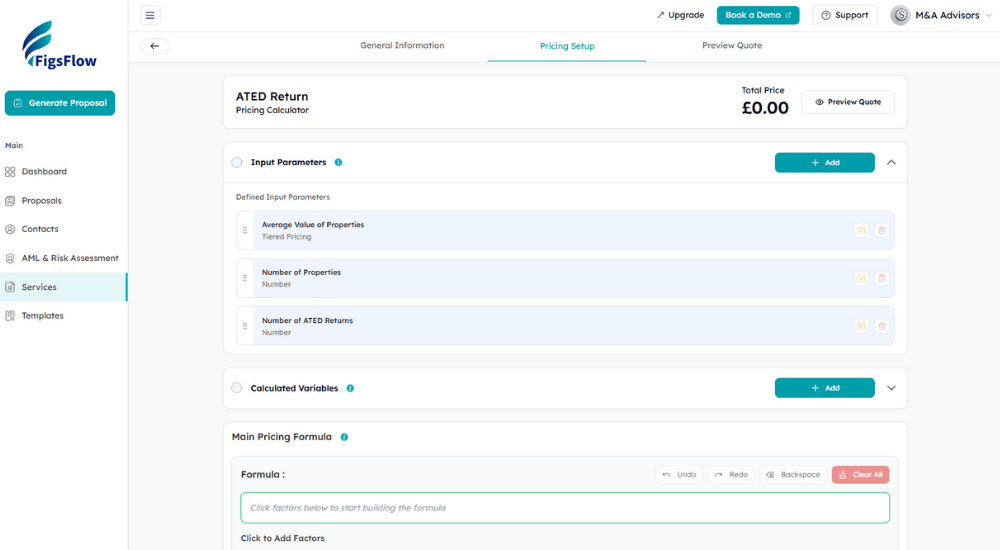
Each parameter now appears in your factors list and will show as a client-facing input field in the quote interface.
Step 4: Create Calculated Variables (Optional)
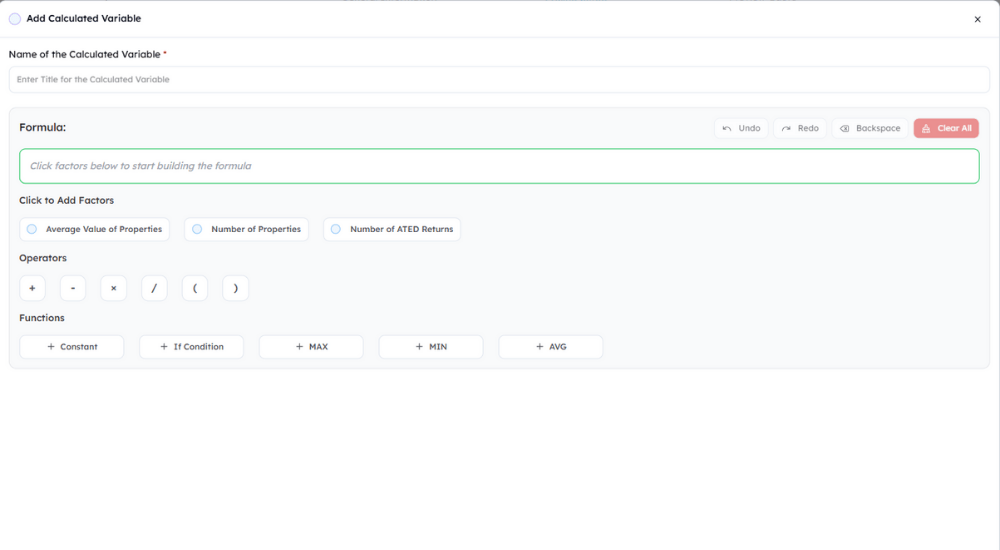
For services requiring intermediate calculations, click “+ Add” under the Calculated Variables section.
The Calculated Variable module opens, showing a formula builder. Name your variable descriptively, such as “Complexity Multiplier” or “Base Fee Adjustment.” Build your intermediate formula using the same factors, operators (+, -, ×, ÷, parentheses), and functions (Constant, If Condition, MAX, MIN, AVG) available in the main calculator.
Once saved, Calculated Variables become available as factors in your Main Pricing Formula, keeping complex logic organized and reusable.
Step 5: Build Your Main Pricing Formula
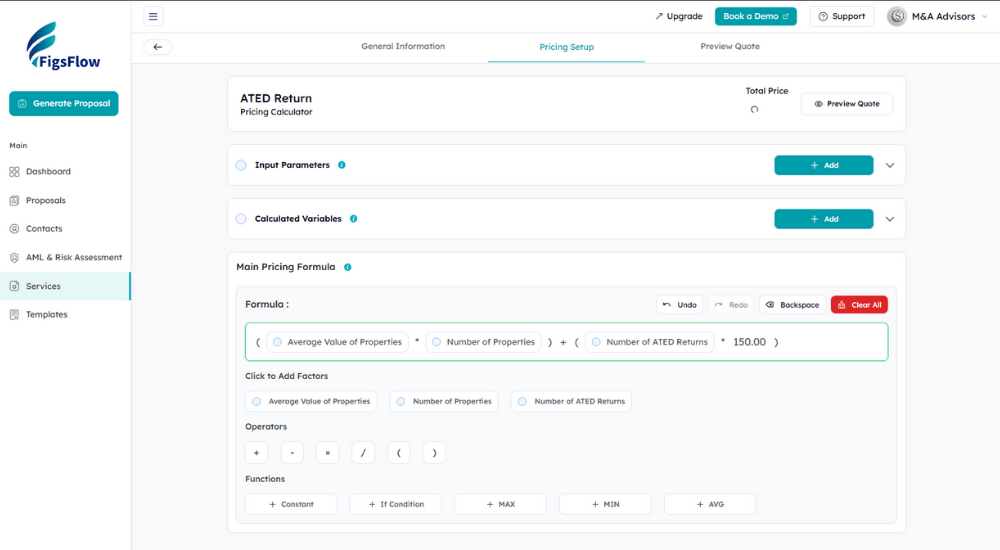
The Main Pricing Formula section displays all available factors, including your Input Parameters and any Calculated Variables you created. You can build formulas using operators (+, -, ×, ÷, parentheses) and functions (Constant, If Condition, MAX, MIN, AVG).
Click factors to add them to the formula builder field. The formula displays visually as you build it, showing each component as a pill-shaped element.
For our ATED Return service, we’ll use a simple formula:
(Average Value of Properties × Number of Properties) + (Number of Returns × 150).
The formula builder includes Undo, Redo, Backspace, and Clear All controls in the top right for easy adjustments. The system validates your formula syntax automatically as you build.
Step 6: Preview Your Pricing in Real-Time
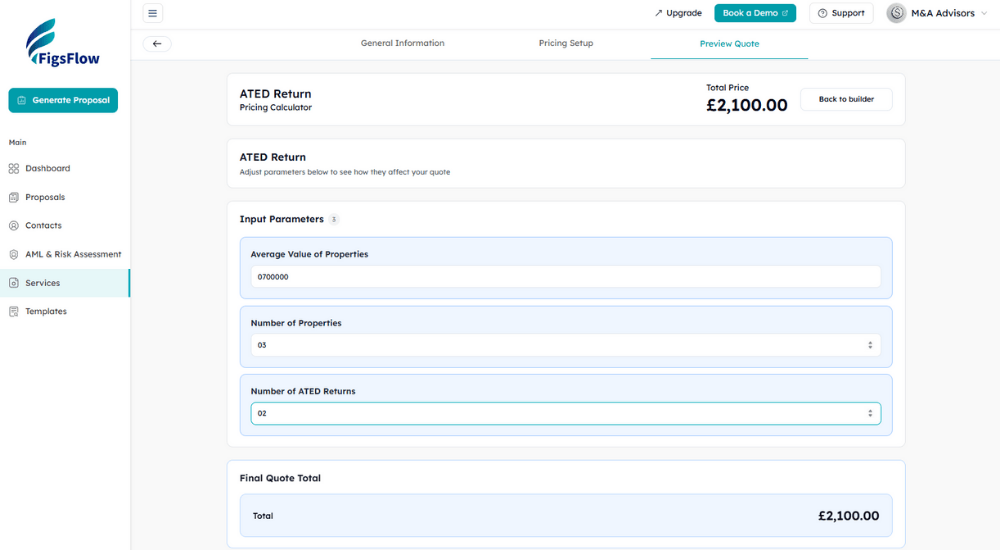
Click the “Preview Quote” tab at the top of the screen to see exactly what clients will see.
The preview interface shows your service name with all input parameters as client-facing fields. “Average Value of Properties” appears as a dropdown with your tier options. “Number of Properties for which ATED return has to be filed” and “Number of Returns to be filed” appear as numeric input fields.
Select values to test your pricing. The Final Quote Total updates instantly based on your formula. Test different scenarios to verify accuracy before going live. The quote recalculates in real time, showing exactly what clients will see when this service appears in their proposal.
Configure Once, Use Forever
You’ve just built a complete service with AI-generated schedules and automated pricing. From this point forward, every proposal using this service calculates instantly based on client-specific parameters. Your team uses identical pricing logic. No spreadsheets. No manual calculations. No inconsistency.
Don’t know industry-standard pricing for a service? FigsFlow offers base pricing setups for common accounting services, giving you a professional starting point you can customize to match your practice.
How FigsFlow’s Advanced Pricing Calculator Transforms Your Practice
The Advanced Pricing Calculator delivers immediate operational improvements across four critical areas.
-
Eliminate Pricing Errors
Formula-based calculations remove manual mistakes completely. The number you quote is the number the system calculated. No transcription errors. No forgotten adjustments. No team member is applying incorrect formulas. Your pricing becomes mathematically consistent across every proposal.
-
Scale Complex Services
Services that previously required spreadsheet work now calculate automatically. ATED Returns, tax advisory packages, specialist compliance work, all priced instantly regardless of complexity. You can offer sophisticated services without adding administrative overhead.
-
Quote Faster, Win More
Real-time calculation means instant, accurate quotes during client conversations. No more "I'll send you a quote tomorrow." You can provide precise pricing immediately, shortening the sales cycle and improving conversion rates.
-
Maintain Consistency
Every team member quotes identical prices for identical client situations. New staff members don't need to learn complex spreadsheet systems. Your pricing knowledge lives in the calculator, accessible to everyone who generates proposals.
How to Access FigsFlow's Advanced Pricing Calculator
The Advanced Pricing Calculator is live in FigsFlow now. Here’s how you can access it.
-
For Services Created After the Calculator Launch
All new services automatically use the Advanced Pricing Calculator. Simply navigate to Services, create your service group, and you'll see the advanced pricing interface in the Pricing Setup tab.
-
For Existing Services Created Before the Launch
Navigate to Services in your dashboard, select any service you want to upgrade, click the Pricing Setup tab, and click "Convert to Advanced Calculator." Remember that conversion is permanent, so review your service structure before converting.
-
For New Users
Start your 30-day free trial (no credit card required) and explore the Advanced Pricing Calculator alongside FigsFlow's complete practice management suite, including AI-powered service creation, automated proposals, and integrated payment collection.
Advanced Pricing Is Just the Start
Our Recent Product Updates
- Custom Reminder Timelines: FigsFlow Now Has Custom Reminder Timelines Feature | FigsFlow
- GoCardless Integration: GoCardless Integration Now Live in FigsFlow | FigsFlow
- Signature Configuration: Signature Configuration: Auto-Sign Letters | FigsFlow
- FigsFlow AI: FigsFlow AI Launched Today for Accounting Firms
- Adfin Integration: FigsFlow Adfin Integration: Automate Payments & Boost Cash Flow
Frequently Asked Questions (FAQs)
Yes, you can convert any existing service to use the Advanced Pricing Calculator. Navigate to Services, select the service you want to upgrade, click the Pricing Setup tab, and click “Convert to Advanced Calculator.” Remember that this conversion is permanent and cannot be reversed, so review your service structure before proceeding.
Your old pricing structure is replaced entirely by the Advanced Pricing Calculator. The conversion is permanent, meaning you cannot revert to the legacy pricing system once converted. Make sure to document your current pricing logic before converting so you can rebuild it accurately in the new calculator.
Yes, you can use different pricing systems for different services. Services created after the calculator launch automatically use the Advanced Pricing Calculator, while older unconverted services continue using the legacy system. You decide which services to convert based on their complexity and your practice needs.
Clients see a clean interface with input fields for each parameter you configured. Tiered options appear as dropdowns, numeric values as input fields with increment controls. As they adjust parameters, the quote total updates in real time, showing the exact price based on their specific situation before they accept the proposal.
Volume-Based Rate applies different per-unit prices to entire quantities based on brackets (1-10 properties at £100 each, 11-20 at £80 each). Graduated Rate works like tax brackets, applying different rates to portions of the total (first 10 properties at £100 each, next 10 at £80 each, calculating progressively through the total quantity).