
We’re excited to announce a new feature that makes your engagement letters more professional and saves you time with every client: Signature Configuration.
You can add your signature directly to FigsFlow and have it automatically appear on every engagement letter you send. No more printing, signing, scanning, and re-uploading. No more worrying about consistency.
Just configure it once, and you’re done.
What's New
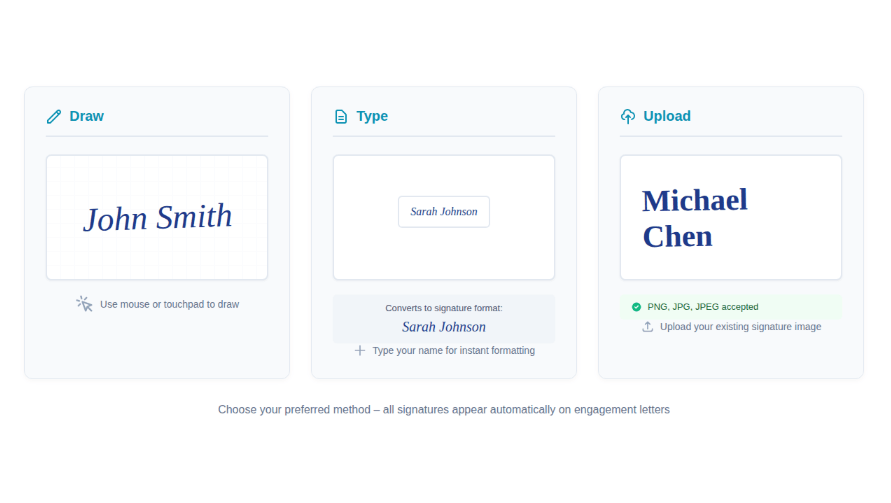
Signature Configuration lets you add your professional signature to engagement letters in three flexible ways:
- Draw Your Signature
Use your mouse or touchpad to create a handwritten signature directly in FigsFlow. It captures your natural signing style and looks authentic on every document.
- Type Your Signature
Prefer a text based signature? Simply type your name and FigsFlow converts it into a professional signature format that appears on all your engagement letters.
- Upload Your Signature
Already have a signature image you use across your practice? Upload it once, and FigsFlow applies it automatically to every engagement letter going forward.
Once you’ve configured your signature, it becomes part of your firm’s engagement letter template. Every time you generate a new letter of engagement for a client, your signature is already there, properly positioned and professionally formatted.
How to Set It Up
Getting started takes less than two minutes:
- Step 1: Navigate to Settings in your FigsFlow account. You’ll find Signature Configurations in the left sidebar under Email Configurations.
- Step 2: Click “Add Signature” in the top right corner. A configuration window opens with three options: Signature, Text, and Upload.
- Step 3: Choose your preferred method. If you’re drawing your signature, use the canvas provided to sign naturally. If you’re typing it, enter your name in the text field. If you’re uploading, select your signature image file.
- Step 4: Toggle the “Enabled” switch to activate your signature. Give it a signatory name for easy identification if you manage multiple signature configurations.
- Step 5: Click Save. Your signature is now configured and will automatically appear on all future engagement letters generated in FigsFlow.
That’s it. Every engagement letter you create from this point forward includes your signature without any additional steps.
What Our Users Are Saying
Since we began testing this feature with select practices, the feedback has been clear: this is one of those updates that immediately improves daily workflow.
One accountant told us it eliminated “the most annoying three minutes of every client onboarding.” Another mentioned it finally solved the consistency problem they’d been manually managing across their team.
We built FigsFlow to handle the operational details so you can focus on serving clients. Signature Configuration is another step in that direction.
Get Started Today
Signature Configuration is available now in FigsFlow at no additional cost. Head to Settings > Signature Configurations to set up your signature and start sending professionally signed engagement letters in seconds.
We’re continuing to build features that eliminate friction from your practice operations. Have feedback or suggestions for future updates? Reach out to our support team. We’re listening.
Frequently Asked Questions (FAQs)
Yes. Go to Settings > Signature Configurations, click on your existing signature, make your changes, and save. All new engagement letters will use the updated signature.
Yes. Once configured, your signature automatically appears on every engagement letter you generate, regardless of service type or client.
You can upload common image formats including PNG, JPG, and JPEG. We recommend PNG for the best quality and transparency.
Yes. Digital signatures on engagement letters are widely accepted in professional practice. However, you should confirm compliance with your local jurisdiction’s requirements.
Previously generated engagement letters remain unchanged. The signature configuration only applies to new engagement letters created after you’ve set it up.
Yes. Toggle the “Enabled” switch off in your signature configuration. Your signature will stop appearing on new engagement letters until you enable it again.