
Engagement Letter Signed. Automated AML Onboarding Begins. FigsFlow.
Until now, sending a client their AML onboarding link was a manual task with no trigger. That step is now automatic.
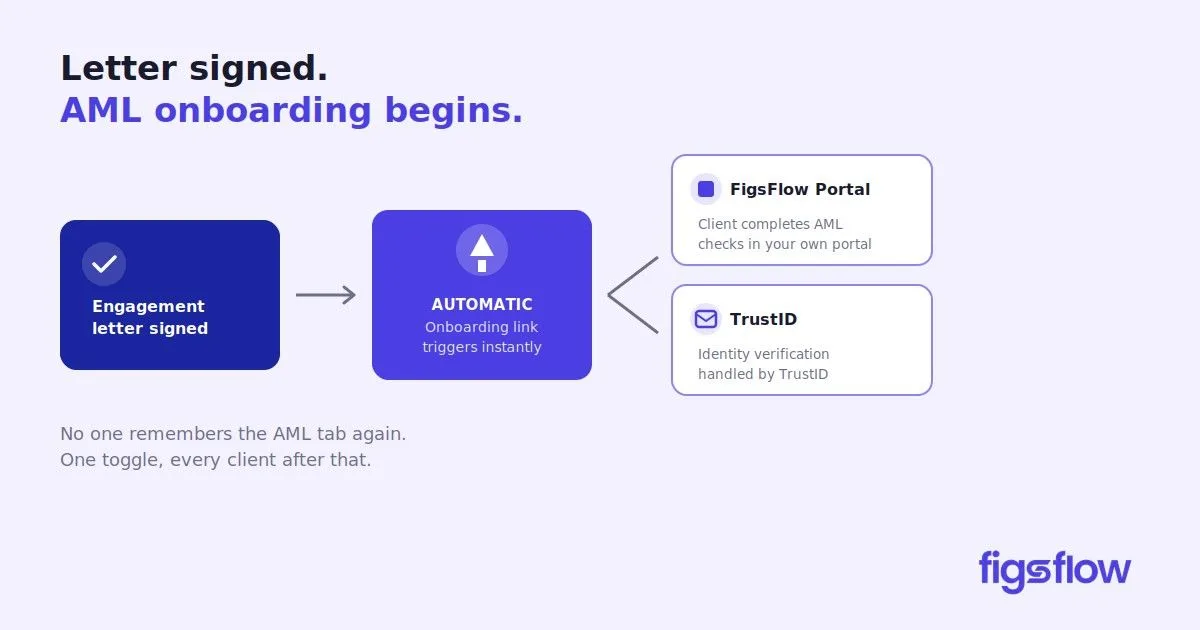
AML onboarding automation is the process of triggering a client’s anti-money laundering checks automatically when a defined event occurs – such as an engagement letter being signed – rather than a team member sending the request by hand. It removes the manual gap between signature and verification.
Until now, sending a client their AML onboarding link was a manual task with no trigger. That step is now automatic.
Automated AML Onboarding
One forgotten AML check is one too many - so stop leaving it to memory.
Switch it on once. Every client gets their onboarding link the moment they sign - from £2.10 + VAT per check, in the platform you already use.

5.0 ★★★★★ on G2

4.9 ★★★★★ from 50+ reviews
Built for UK firms working under the Money Laundering Regulations 2017 and the AML guidance of bodies including ICAEW and ACCA.
The Manual Step That Caused the Delay
For most practices, AML onboarding after a signed engagement letter meant one of two things: working through a sanctions list by hand, or exporting client data into a separate platform just to run the check. Two workflows, two logins, two places for something to go wrong.
FigsFlow users had it better. The entire process lived in one place: proposal, engagement letter, AML, all connected. But even then, the trigger was manual. Once the letter was signed, someone had to navigate to the AML tab, find the client, and send the onboarding link themselves.
Hectic, for a platform that exists to make every step faster. So we removed it.
What Changes Now
The moment a client signs their letter of engagement, FigsFlow sends the AML onboarding link automatically. You choose which path that triggers:
| Feature | FigsFlow Portal | TrustID |
|---|---|---|
| Onboarding link sent | Automatically on LOE signature | Automatically on LOE signature |
| AML check | Accountant runs manually (one click) | Completed automatically |
On both paths, the client receives their link without the team lifting a finger. The difference is how much of the check itself FigsFlow handles.
When Should AML Checks Happen - Before or After the Engagement Letter?
Anti-money laundering checks should be completed before a firm begins providing services to a client. In practice, most firms run customer due diligence at onboarding, immediately after the engagement letter is signed. Automating the trigger at signature closes the gap so verification starts without delay.
How to Turn It On
Head to AML & Risk Assessment, open AML & RA Configuration, then select Onboarding Automation. Toggle it to active.
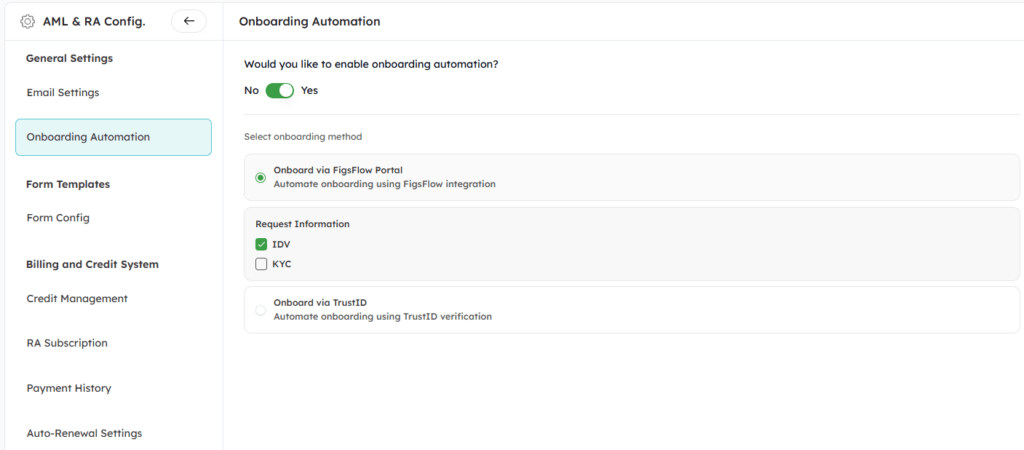
Then choose your preferred onboarding path:
- Select FigsFlow Portal to automate document collection via FigsFlow. The AML check runs manually with one click once documents arrive.
- Select TrustID to automate the full check via TrustID verification. The AML report generates automatically.
- Tick whether you want IDV, KYC, or both under Request Information.
- Click Save. The automation applies to all clients from that point forward.
If you do not want AML onboarding triggered for a specific client, set the toggle to inactive. The link will not be sent and no prompt will appear.
What This Means Day to Day
No one on your team needs to remember the AML tab again. The moment a client signs, FigsFlow takes over: the link goes out, documents come in, and your team picks up exactly where automation stops. Signed to verified, without the gap.
Automate Your AML Onboarding
One toggle. Every client after that gets their onboarding link the moment they sign.
Try FigsFlow Free →