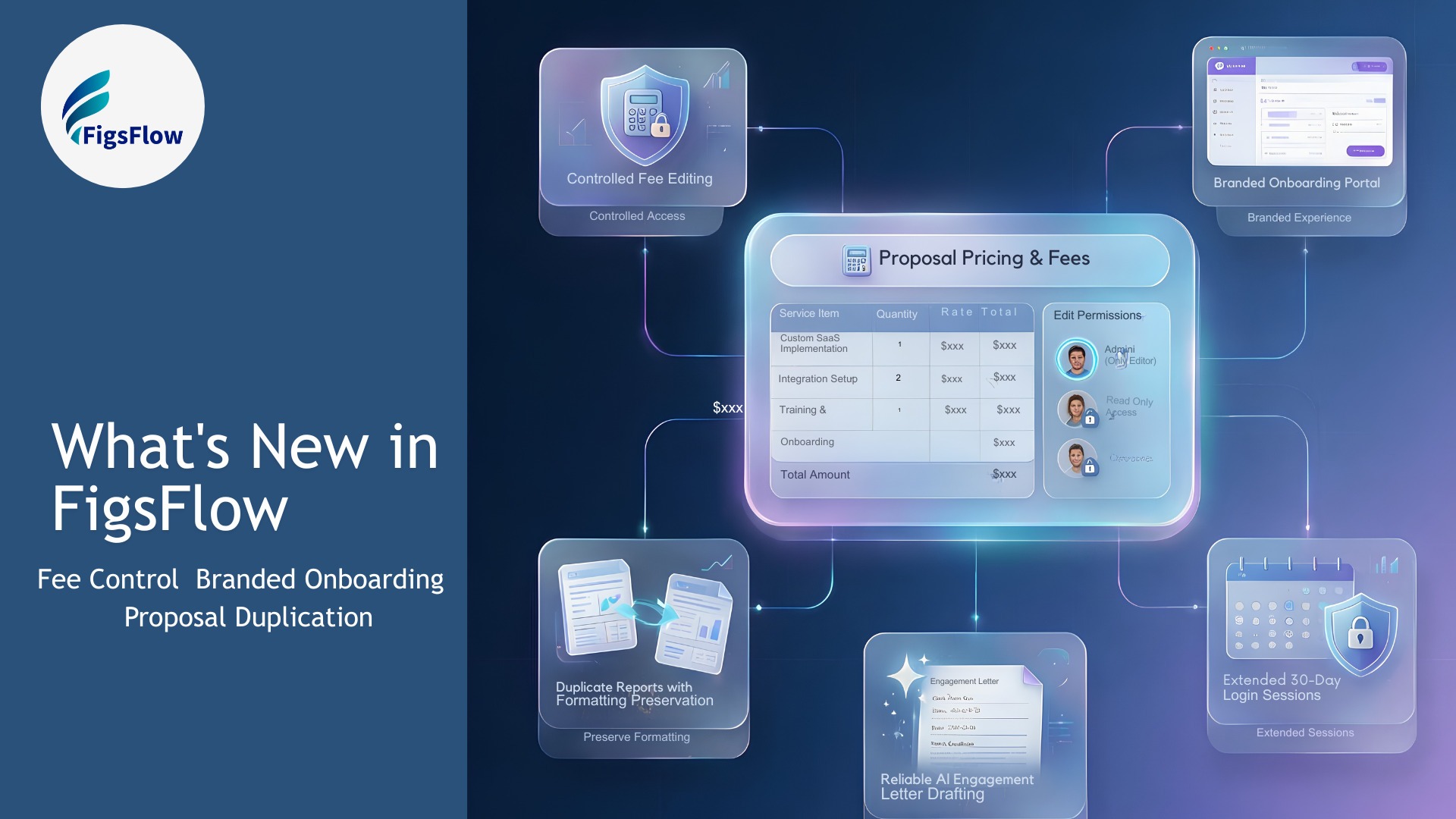

New fee edit permissions let firms control who can change a proposal’s fee, put your firm’s brand on the client onboarding page, and let you duplicate a proposal and carry your customisations across to the next client. Two smaller fixes come with it. AI drafts now come through cleanly, and you stay logged in for longer. Here is what changed and where to find each one.
Set Fee Edit Permissions
When your team generates a proposal for a client, FigsFlow works out the fee automatically from your pricing setup. This feature lets the firm decide who is allowed to change that figure.
You choose which roles can manually override the calculated fee. Anyone without permission sees the fee as read-only and generates the proposal on the automatically calculated price.
How to set Fee Edit Permissions
Follow the steps below to choose which users or roles can override the calculated fee.
Show Your Firm's Logo on the Client Onboarding Page
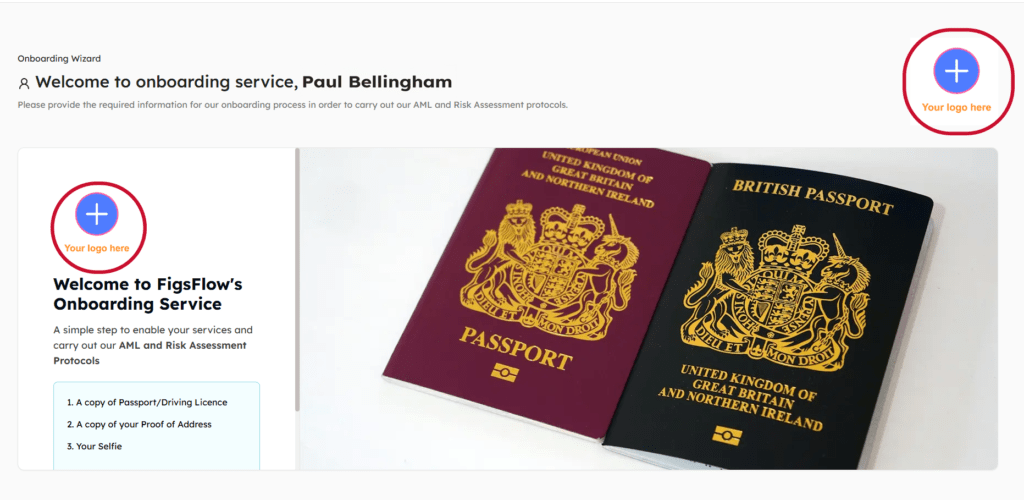
When you onboard a new client, they receive a secure link that opens the client onboarding page, where they complete your firm’s AML and risk assessment steps. Until now, that page carried the FigsFlow logo. It now displays your firm’s own logo instead, so the client sees your brand from the very first screen rather than your software provider’s. It is a small change, but the onboarding page is often a client’s first real interaction with your firm online, and a branded page looks more professional and reassures them they are in the right place. If you have not uploaded a logo yet, the page simply falls back to the FigsFlow logo, so it always looks complete.
How to Set or Change Your Logo
Step 1: Go to Settings, then Firm Profile
Step 2: Find your firm logo on that screen and upload or change it
Step 3: Save. It applies to the client onboarding page automatically
Reuse a Customised Proposal for a New Client
If you have customised a client’s Proposal and LOE, you can duplicate proposal for another client instead of building it again. All the terms, wording, and formatting carry across exactly as they are. You then change the name to the new client.
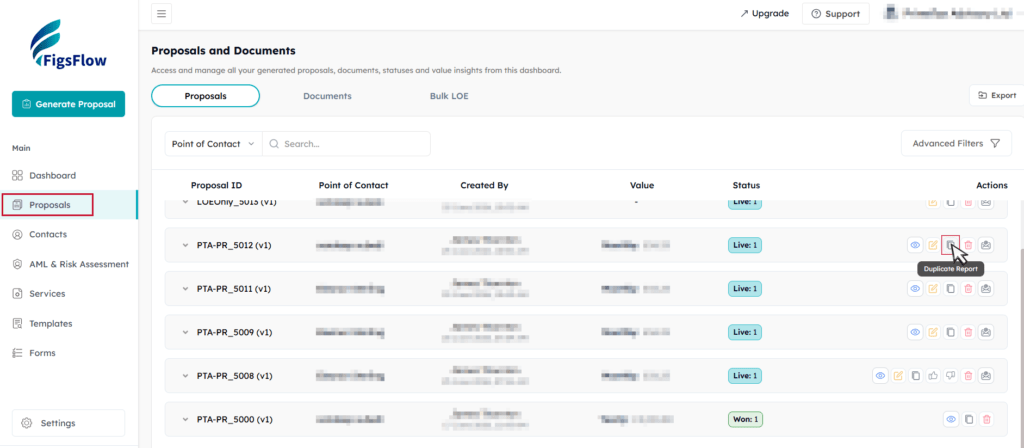
How to Duplicate Proposal
Step 1: Go to Proposals and duplicate the client proposal you want to reuse.
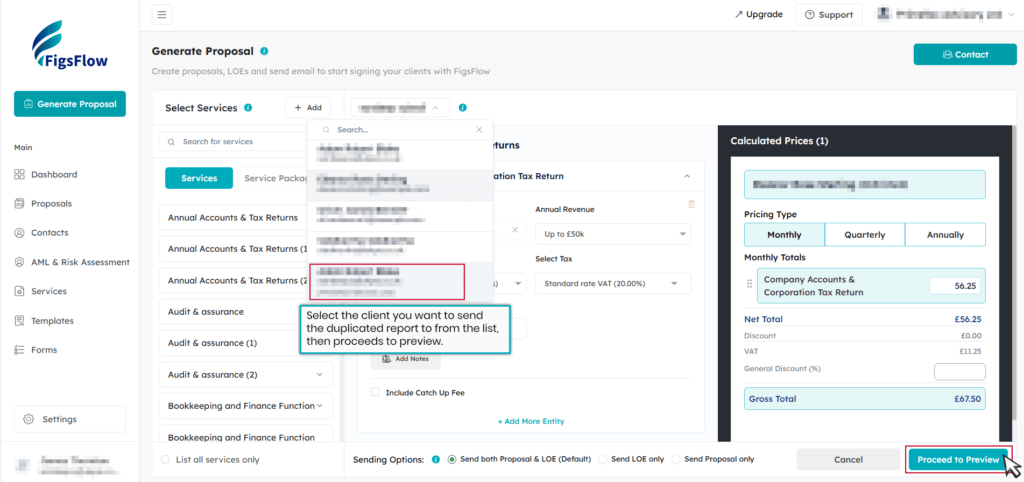
Step 2: Select the client you want to send it to, then preview.
More Reliable AI Drafting
AI-generated engagement letters and service descriptions now come through complete and in the correct order every time. Earlier, longer drafts could sometimes cut off partway or arrive with sections out of sequence. That is fixed. When you generate a letter or a service description, the full text comes through as intended, ready to review without patching gaps or reordering paragraphs.
Longer Login Sessions
You now stay signed in for up to 30 days across normal working gaps, so you are not logged out between sessions during a typical working week. Previously, sessions timed out sooner, which meant signing back in more often than you would like, sometimes mid-task. That no longer happens during normal use. When a session does genuinely expire, you get a single clean redirect to the login page rather than repeated prompts or broken screens. Sign back in once and you are straight back to where you were.
Conclusion
This release gives firms tighter control over pricing, a branded first impression at onboarding, and report reuse that no longer costs you your customisations. Set your Fee Edit role and upload your logo now so the controls apply before your next client goes out.