
How to Add an Electronic Signature in Word, PDF & Google Docs (2026)
Step-by-step guide to add an electronic signature in Word, PDF and Google Docs in under 2 minutes. Free methods, no extra software needed - for professionals.

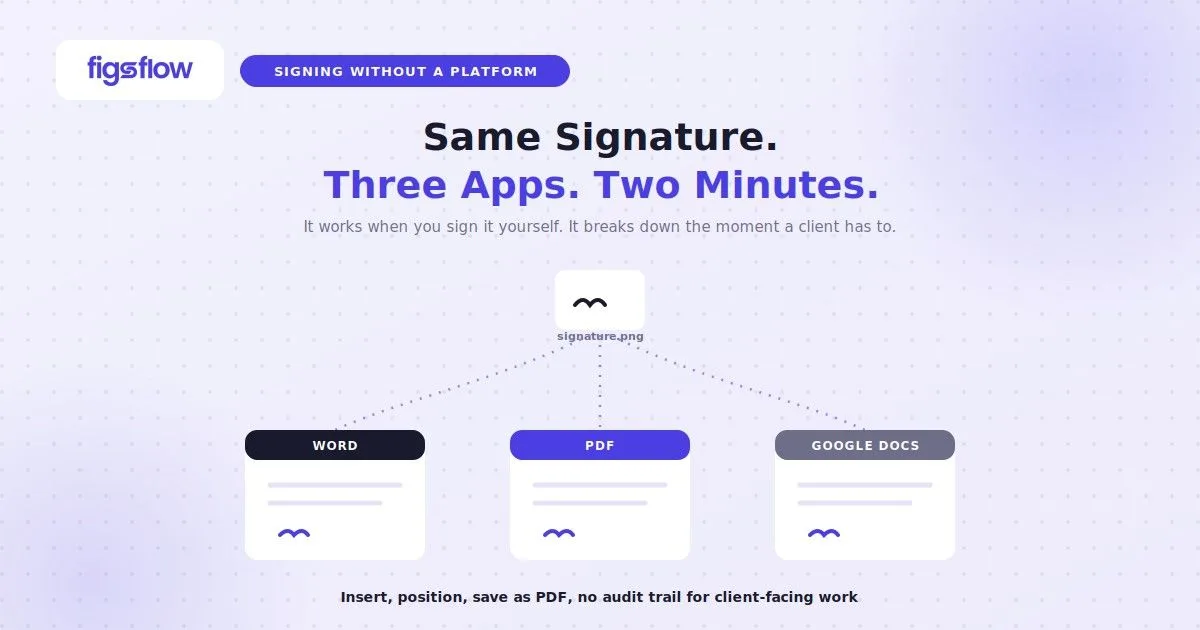
You have a document sitting in front of you. Someone needs your signature on it. You do not want to print it, sign it with a pen, scan it, and send it back. Nobody does. And in most cases, you do not need to – a properly placed electronic signature is legally valid in the UK.
Here is how to add an electronic signature directly inside Microsoft Word, Adobe Acrobat, and Google Docs without printing a single page.
An electronic signature added to a Word document, PDF or Google Doc is a simple electronic signature – any electronic data demonstrating intent to sign. It requires no certificate, no tamper-detection, and no specialist software. For personal documents and low-risk agreements, it is legally sufficient under UK law.
Step 1: Get Your Signature Ready
Before you add a signature to any document, you need one. The quickest way is Canva’s free signature generator. Draw your signature on the canvas, download it as a PNG, and you are done.
You will want two versions:
- One with a transparent background (for placing over documents)
- One with a white background (for email signatures and anywhere transparency causes issues)
How to Add an Electronic Signature in Microsoft Word
Word does not have a dedicated e-signature feature, but you do not need one. You are simply inserting a PNG image and positioning it over the signature line.
For the purpose of this guide, we are signing an assured periodic tenancy agreement as a landlord. If you want to follow along, download the form here: Assured Periodic Tenancy Agreement Template | FigsFlow, or you can use your own if you prefer.
Here is how to do it.
Step 1: Open Your Document in Word
Open the document you want to sign.
Step 2: Go to Insert > Pictures
Click the Insert tab in the top menu. Select Pictures, then choose This Device (or From File on Mac). Locate your signature PNG and click Insert.

Step 3: Position Your Signature
Your signature will appear as a floating image. Click on it. In the Picture Format tab, click Wrap Text and select In Front of Text. This lets you drag it freely over the signature line.

Step 4: Resize & Place It
Drag the corners to resize. Drag the image itself to position it directly over the signature field. Use the transparent version of your PNG so that no white box is visible over the document text.

Step 5: Save as PDF
Go to File > Save As and choose PDF from the format dropdown. This locks the signature in place and makes the document ready to send.
How to Add an Electronic Signature to a PDF File
For PDFs, use Adobe Acrobat’s free web tool. No download required. It works in any browser.
To follow along, save the Word document from the previous section as a PDF. Open the document in Word, go to File > Save As, select PDF from the format dropdown, choose your preferred location, then click Save.
Once you have your PDF ready, or if you have your own, here is how to add your signature.
Step 1: Go to Adobe Acrobat’s Fill & Sign Tool
Use this direct link to land straight on the Fill & Sign tool: Adobe Acrobat
Sign up for a free account if you do not have one. It is free.
Step 2: Upload Your PDF
Upload your document directly on the page.

Step 3: Add Your Signature
Once the document opens, click the E-Sign tab in the top navigation. Click “add signature” in the left panel. A pop-up appears with three options: Type, Draw, or Image. Select Image and upload your signature PNG.

Step 4: Place It on the Document
Click the signature you uploaded, then click anywhere on the document where you want your signature to appear. Adjust the size using the handles.

Step 5: Download the Signed PDF
Click Download at the top right. Your signed PDF is ready.
How to Add an Electronic Signature in Google Docs
Google Docs has a built-in signature feature, but it only lets you draw with a mouse, which rarely looks good. The cleaner approach is to insert your PNG directly, the same way you would in Word.
Step 1: Open Your Document in Google Docs
Open the document in your browser.
Step 2: Go to Insert > Image > Upload from Computer
Click Insert in the top menu. Hover over Image, then select Upload from computer. Choose your signature PNG and click Open.
Step 3: Set the Image to “In Front of Text”
Click on the image once it appears. A small toolbar will appear below it. Click the three-dot menu and select All image options. Under Text wrapping, select In front of text.

Step 4: Drag & Resize
Drag the signature to the correct position over the signature line. Resize from the corners to fit.

Step 5: Download as PDF
Go to File > Download > PDF Document. This locks the layout and produces a clean signed file ready to share.
If You're an Accountant, Read This
Everything above works when you are signing something yourself. It takes two minutes and costs nothing.
But if you are sending documents to clients – engagement letters, proposals, onboarding agreements – the manual approach breaks down immediately. You cannot ask a client to download a PNG, open Adobe Acrobat, upload their signature, and position it over a field. Most will not get past step two.
The right tool sends the document, collects the signature, and stores the audit trail automatically. The client taps a link. Done.
For UK accounting firms specifically, there is also a compliance dimension. A PNG inserted into Word is a simple electronic signature – legally valid for most documents, but it produces no audit trail, no identity verification, and no tamper-detection record. For engagement letters required under ICAEW and ACCA guidelines, a platform that produces those records is the safer choice.
Conclusion
Adding an electronic signature to a Word document, PDF or Google Doc takes under two minutes once you have your PNG ready. Insert it, position it, save it as PDF.
For documents you are signing yourself, that is all you need. The result is a simple electronic signature – legally valid under UK law for most personal and professional documents.
For anything that involves a client signing on the other end, the manual approach breaks down fast. A dedicated e-signature platform removes the friction entirely and adds the audit trail your practice needs.
More e-signature guides for UK accountants
- Legal framework: What makes an electronic signature legal?
- Definitions: Simple vs advanced vs qualified e-signature
- Definitions: Digital signature vs electronic signature
- Accountants: E-signatures on engagement letters — UK validity
- How-to: How to create an electronic signature for free